
WooCommerce Pre-Order Plugin with Deposits turns any product, or any single variation of it, into a pre-order with a release date, a live countdown, and a price of its own. Shoppers pay in full or leave a deposit, their orders wait in a dedicated Pre-Ordered status, and the moment the release date arrives, the plugin hands them to your normal fulfillment flow, unlocks downloads and emails the buyer. Nothing hinges on a cron job that may never run: releases are scheduled to the minute and double-checked on every page view. The free core already covers variations, pricing rules, badges, countdowns, four emails and a My Account tab. The Premium add-on adds deposits with balance orders, charging saved cards on release, splitting mixed carts into separate orders, quantity limits with batches, campaign windows, a notify-me waitlist and a dashboard for every open pre-order. If you find a bug (conflict) in our plugin, need additional features, or have any suggestions, please contact us on the plugin forum: Support Forum.

WooCommerce Pre-orders
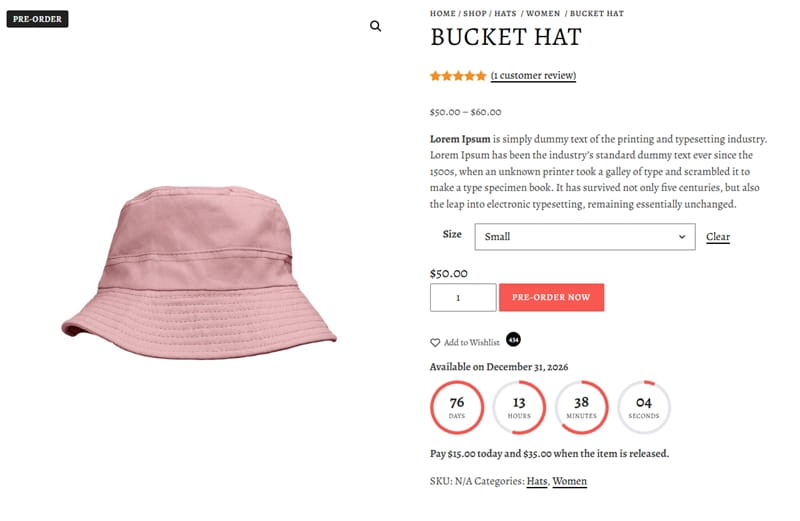
Open the Pre-Order tab of a product, switch it on and pick the release day and hour in your store's own time zone. That is enough for the storefront to change: a badge lands on the product image and the shop cards, the availability line announces the date, a countdown ticks toward it, and the buy button reads "Pre-Order Now" or whatever you prefer.
Price the pre-order as a fixed amount, a discount or a markup. On variable products each size or color decides for itself, so one variation can ship today while another is reserved for next month, and the page follows whichever the shopper selects.
Pre-Order Emails
Every stage of a pre-order has its own message, and all of them are ordinary WooCommerce emails you can edit, restyle or override from your theme. The shop owner receives a new pre-order notice with the items and their release dates.
The customer gets a confirmation that explains what is reserved and when it arrives, a released email the day the goods move on, and, if you ever move a date, a change notice sent once per update with the order details already corrected. Premium customers also receive deposit, balance and waitlist messages, so nobody has to ask "where is my order?"


Pre-Orders Demo
Deposits for Pre-Orders
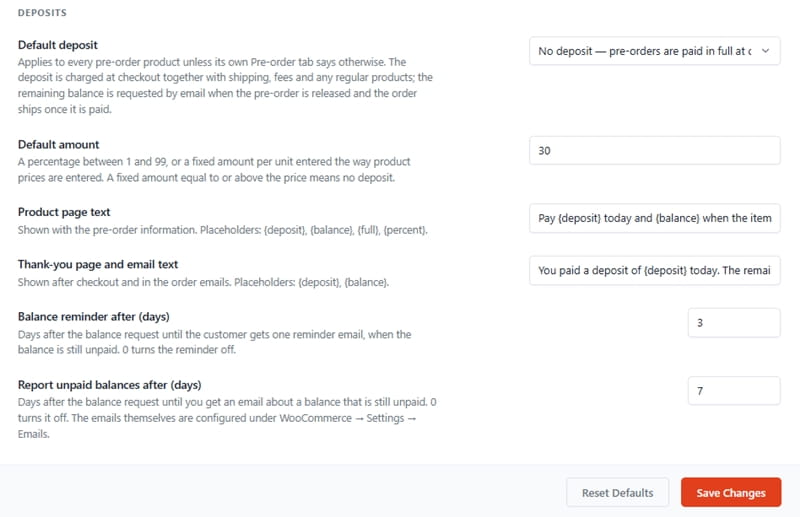
Not every buyer wants to pay months in advance, and not every store wants to hold the full amount. With the Premium add-on you decide what is paid at checkout: a percentage of the pre-order price or a fixed sum per unit, as a store default or per product and variation.
The cart and checkout show the deposit, the remaining balance and when it is due. At release the plugin creates a balance order and emails a payment link, reminds the customer after a few days and reports overdue balances to you. Connect Stripe or WooPayments and the balance is charged to the saved card automatically, no link needed.
Mixed-cart Splitting
A cart with a jacket that ships today and sneakers arriving in March used to mean one stalled order or a phone call. The free plugin lets you allow or block such mixes; Premium splits them.
The customer pays once, the in-stock items keep the original order and ship right away, and the pre-order items receive their own order per release date, or one order for all of them, marked paid with the same transaction. Shipping is charged once or divided by item value, the checkout explains the plan before payment, the thank-you page and emails list the resulting orders, and the admin links them both ways.
WooCommerce Pre-Order Plugin Features
The free version is a complete pre-order system, not a demo: no locked screens, no nag notices, no outside connections. It runs on classic themes and block themes, with the Cart and Checkout blocks, with High-Performance Order Storage, and with every payment method WooCommerce offers. The plugin has been tested on many popular themes, including the standard Twenty, Astra, Storefront, Kadence, OceanWP, GeneratePress, Neve, Hello Elementor themes, and others. The Premium add-on installs beside it and extends the same screens: the money features, the campaign tools and the dashboard appear exactly where you already work, with nothing to reconfigure.
The WooCommerce Pre-Order plugin with Deposits is available in Free and Premium versions. Premium offers three plans: Personal (1 website), Business (up to 5 websites), and Developer (unlimited websites). All plans include the same premium features and differ only in website limits.
We accept Credit Cards, PayPal, and Debit Cards payments!
Detailed List of Features
- Pre-orders for simple products and variations
- Release date and optional time per product
- Date-less "coming soon" pre-orders
- Fixed, discount or markup pre-order pricing
- Crossed-out regular price beside the offer
- Pre-Order badge on listings and product images
- Badge corner and colors of your choice
- Availability text with date placeholders
- Live countdown as tiles or a single line
- Cache-safe countdown computed in the browser
- Custom pre-order button label
- Dedicated Pre-Ordered order status
- Automatic release to the status you choose
- Hourly safety sweep and on-view release check
- Downloads unlocked only at release
- Allow or block mixed carts with your notice
- Automatic pre-orders for sold-out products
- Four editable WooCommerce emails
- My Account "Pre-orders" tab with countdowns
- HPOS, Cart & Checkout blocks, block themes
- Percentage or fixed deposits at checkout Premium
- Deposit rules per store, product and variation Premium
- Balance orders with payment links at release Premium
- Balance reminder and overdue emails Premium
- Charge saved cards on release: Stripe, WooPayments Premium
- One retry and "charge failed" alerts Premium
- Circle countdown and icon badges Premium
- Split mixed carts into separate orders Premium
- One order per release date, or one for all Premium
- Shipping charged once or divided by value Premium
- Pre-orders dashboard with live tiles Premium
- Bulk release, end pre-order, set release date Premium
- Per-item view with filters and CSV export Premium
- Quantity limits per product and variation Premium
- Batches with their own quantity and date Premium
- Reservation progress bar and urgency text Premium
- Campaign open and close windows Premium
- Notify-me waitlist with three emails Premium
- Waitlist screen with export and manual send Premium
- Priority Support Premium
Video Manual
Pre-orders are only worth running when the money, the dates and the promises to customers stay under control at the same time. WooCommerce Pre-Order Plugin with Deposits keeps all three in one place: the storefront tells shoppers exactly what they are buying and when it ships, orders release themselves on schedule, and every email goes out without anyone watching a calendar. Start with the free plugin on any WooCommerce store, and add the Premium version when you want deposits, automatic charging, split orders, limited batches and a dashboard that shows how a launch is doing at a glance.
Below you can watch a short video tutorial.
User Manual
Step 1: Installing and activating the free plugin
- In your WordPress dashboard go to Plugins → Add New and search for WpDevArt Pre-Orders for WooCommerce.
- Click Install Now, then Activate. WooCommerce must already be active.
- Prefer the zip file? On the same screen click Upload Plugin, choose the zip you downloaded from wordpress.org and activate it.
Step 1.1: Installing and activating the Premium add-on
- Make sure WooCommerce and the free WpDevArt Pre-Orders for WooCommerce plugin are both active.
- Download the Premium zip from your purchase email.
- Go to Plugins → Add New → Upload Plugin, choose the zip, click Install Now and then Activate.
- Keep both plugins active: the Premium add-on extends the free plugin and does nothing on its own.
Once active, the Premium settings appear inside the same WDA Pre-Orders → Settings screen (a Premium tab plus extra options on the Display and Cart & Checkout tabs), and two new submenus appear: Pre-orders (the management dashboard) and Waitlist. To update the add-on later, upload the new zip the same way and choose Replace current with uploaded.
First settings
Open WDA Pre-Orders → Settings. Every tab has its own Save Changes button and a Reset Defaults button that restores only that tab.
- General – Order status after release decides where pre-orders go when their date arrives (Processing by default). The Stock section lets pre-orders sell while the product is out of stock, switches products to pre-order automatically when they run out, and chooses when returning stock releases them. The Pricing section decides whether discounts are calculated from the regular or the sale price and whether the crossed-out price is shown.
- Display – the badge (text, corners for listings and the product page, colors), the button label and availability texts with their placeholders, and the countdown (position, style, seconds, colors). With Premium you can also choose an icon badge and the circle countdown style here.
- Cart & Checkout – what happens when pre-orders and regular products meet in one cart (allow, block with your notice, or, with Premium, split into separate orders), the cart line text, and whether the "Notify customers" box is pre-selected when you change a date.
- Emails – shortcuts to the four pre-order emails in WooCommerce → Settings → Emails, where you can edit subjects, headings and texts or switch any of them off.
- Advanced – the release engine status (next check, scheduled releases, a Run release check now button), the list of text placeholders, where to copy templates for theme overrides, and the Delete data on uninstall switch.
- Premium – limits and batches, campaigns and waitlist, order splitting, deposits and charge on release (see the Premium sections below).
Putting a product on pre-order
- Edit the product and open the Pre-Order tab in the Product data box.
- Tick Enable pre-order.
- Set the Release date and, if you want an exact moment, the Release time (your store's time zone). Leave the date empty for a "coming soon" pre-order without a countdown.
- Choose the Pre-order price: keep the regular price, set a fixed price, or apply a discount or markup by amount or percentage.
- Optionally override the button label and the availability text for this product.
- Click Update. The badge, the availability line and the countdown appear on the product page and in the shop immediately.
Variable products: open each variation and use its own Pre-Order block (switch, date, time, price). The Bulk actions list above the variations has a Pre-order group to enable, disable or set a release date for many variations at once.
Changing a date later: set the new date, tick Notify customers and update the product. Every open pre-order is corrected and its customer receives the "Release date changed" email once.
You can also find our WooCommerce Pre-Order plugin in the WordPress.org directory.What your customers see
- A Pre-Order badge on shop cards and on the main product image.
- The availability line, the countdown and the pre-order price on the product page.
- A note next to each pre-order item in the cart, at checkout and in the order details.
- The Pre-ordered status in My Account and a My Account → Pre-orders tab listing every reserved item with its release date and countdown.
Release day
Nothing to do. At the release moment the product stops being a pre-order, paid orders move to the status chosen in the General tab, downloads are unlocked and the "Pre-order released" email goes out. An hourly safety check and a check on every product view catch anything a missed cron run left behind; the Advanced tab shows the engine's state and lets you run a check by hand.
Automatic pre-orders for sold-out products
- In the General tab switch on Switch products to pre-order automatically when they run out of stock, or set it per product in the Pre-Order tab.
- Choose under When stock returns whether open pre-orders are released once the stock covers them, once the product is back in stock, or never.
- The Display tab holds the Text for automatic pre-orders shown instead of a release date.
Premium: deposits and balance orders
- Go to Settings → Premium → Deposits and choose the default deposit: none, a percentage of the pre-order price or a fixed amount per unit, plus the product page and thank-you texts and the reminder and overdue delays.
- To change the rule for one product, open its Pre-Order tab and use the Deposit at checkout field; variations can have their own value too.
- At checkout the customer pays the deposit for the pre-order items and the full price for everything else; the cart and checkout show the balance due later.
- When the pre-order is released a balance order is created and the customer receives the "Pre-order balance due" email with a payment link; a reminder follows after the configured days and you receive an overdue report.
- On the parent order screen a Deposit and balance box shows the state and the payment link, and the Send balance payment request order action re-sends it. Customers also get a Pay balance button in My Account.
Premium: charging the balance automatically
- Install and connect Stripe (with saved cards enabled) or WooPayments.
- In Settings → Premium → Charge on release switch on Charge the balance automatically, adjust the checkout text that tells customers their card will be charged, and set the retry delay.
- From now on the payment method of a logged-in customer is saved at checkout and the balance is charged when the pre-order is released. Guests, declined cards and bank confirmations fall back to the payment link, you receive a "charge failed" email, and the Charge the balance now order action lets you try again.
Premium: splitting mixed carts
- In Settings → Cart & Checkout set Pre-orders together with regular products to Allow, and place pre-order items in separate orders at checkout.
- In Settings → Premium → Order splitting choose one order per release date or one order for all pre-order items, and whether shipping is charged on the first order or divided by item value; edit the checkout and thank-you texts if you like.
- Cash on delivery and card payments split at checkout; bank transfer and cheque orders stay whole until you mark them paid, then split.
Premium: quantity limits, batches and the progress bar
- In the product's Pre-Order tab fill in Pre-order limit and decide what happens when it is reached: stop taking pre-orders, or continue with batches.
- For batches click Add batch and give each batch its own quantity and release date; orders always fall into the earliest batch with free units and each batch releases on its own date.
- Tick Show progress bar to display "x of y reserved" on the product page. The texts, the urgency threshold and the sold-out wording live in Settings → Premium → Limits & batches.
Premium: campaign windows and the waitlist
- In the product's Pre-Order tab set Pre-orders open on and, if needed, Pre-orders close on, with times.
- Before the opening moment the product shows its badge, the "opens on" line and a notify-me form instead of the buy button; after closing it stops taking pre-orders until the release date.
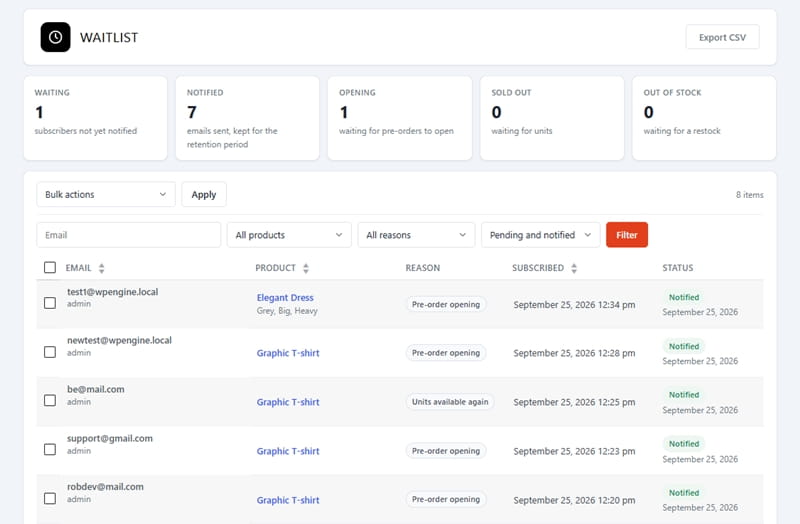
- In Settings → Premium → Campaigns & waitlist switch the notify-me form on for products before opening, sold-out limited pre-orders and out-of-stock products, and edit the form texts.
- Subscribers are emailed automatically when pre-orders open, units become available or stock returns; the three emails are editable under WooCommerce → Settings → Emails.
- WDA Pre-Orders → Waitlist lists every subscriber with filters, a CSV export, a manual Send now and delete actions.
Premium: the Pre-orders dashboard
- Open WDA Pre-Orders → Pre-orders. The tiles show open items, units reserved, revenue waiting, Pre-Ordered orders, releases due within 7 days, units released in the last 30 days, waitlist subscribers and balances due.
- By product lists every product with open pre-orders; select some and use Release orders now, End pre-order and release or Set release date (with an optional customer notification).
- By order item lists each reserved line; filter by product, status or date, search by order number or email, release single items and download the filtered list with Export CSV.
Premium: circle countdown and icon badge
- In Settings → Display set Countdown style to Circles to show a ring per unit; the border color, track color and circle size appear underneath.
- Set Badge style to Icon to replace the badge text with a clock, hourglass, bell, price tag or rocket in a circle or a square, in your own colors.
Tips
- Settings are saved per tab: after editing the Display tab, click its own Save Changes before moving on.
- The countdown is computed in the shopper's browser, so caching plugins never show a stale time.
- Customers can pay a pre-order with any method, including cash on delivery and bank transfer; the release still waits for the order to be paid.
- To restyle the storefront parts, copy the files from the plugin's templates folder into your-theme/wpdevart-pre-orders-for-woocommerce/; email templates are overridden the WooCommerce way.
- If a release looks late, open Settings → Advanced and click Run release check now.