
The WooCommerce Duplicate & Repeat Orders plugin is a great tool that allows you to easily duplicate orders, save them as templates, and use them for future repeat orders. Many WooCommerce stores live on returning buyers. A café restocks the same coffee beans every Monday, a dental clinic reorders gloves and masks each month, a reseller tops up its shelves from your catalogue again and again. Entering those orders by hand, product after product, eats up your team's time and opens the door to typos and forgotten items. WDA Duplicate & Repeat Orders for WooCommerce takes that routine off your desk. Copy any past order in a single click, keep a customer's regular products as a ready-made order template, and build the following order from it whenever the customer calls. Each new order is assembled by WooCommerce itself, so today's prices and taxes are applied, stock is checked before anything is saved, and the customer hears nothing until you choose to send the order on. The free plugin handles duplicating, templates, and ordering from them with no limits. The Premium add-on brings schedules, bulk orders, self-service reordering for customers, reports, and much more.
Duplicate Orders
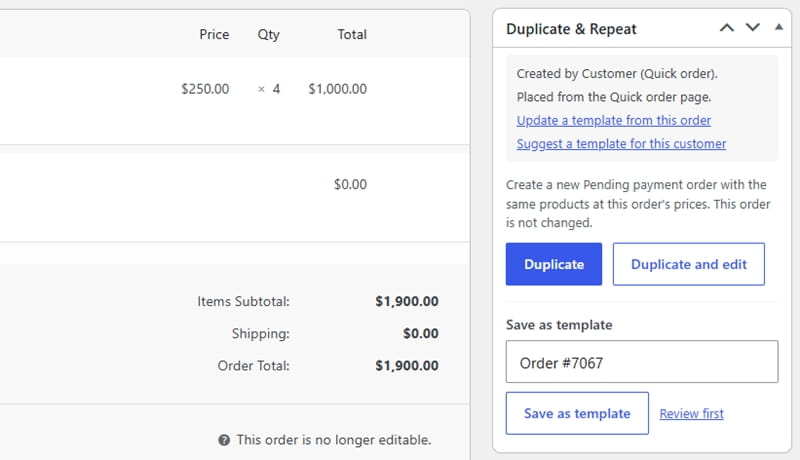
Need the same order again? Open it in WooCommerce and click Duplicate. A fresh order appears with the same customer, products, variations, and quantities, set to Pending payment or On hold. Old payment data, transaction numbers, and statuses stay with the original, and taxes are worked out again for the new order.
If something should change first, Duplicate and edit lets you adjust the products before anything is created. The action also sits in the order preview, the Order actions menu, and the bulk actions.
Save Order as Template
Get even more: save your order as a template. Duplicate & Repeat Orders plugin for WooCommerce gives you this ability. Give it a name in the Duplicate & Repeat box and save it as a template: the products, chosen variations, quantities, and notes are stored for next time.
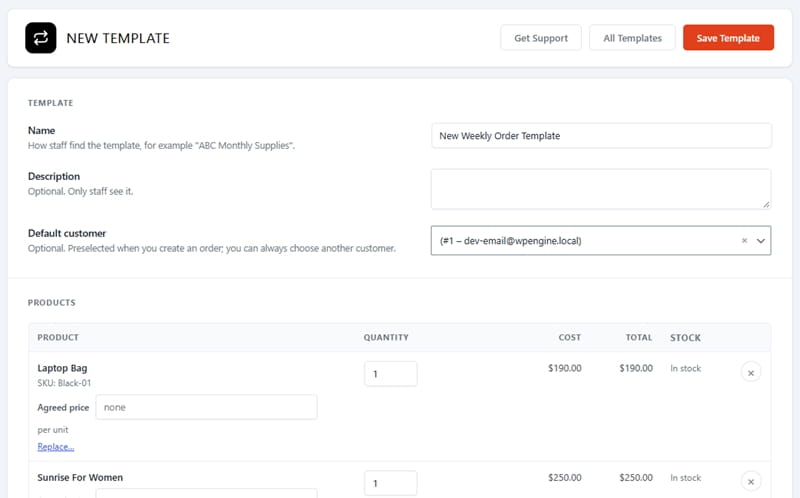
All templates sit in one library where you can find them by name, customer, product or SKU, spot at a glance which ones are ready to order, and update them whenever a customer's assortment changes. From then on, a repeat order takes only a few clicks from the library, the Orders screen or the order editor.


Duplicate & Repeat Orders
Schedule Orders
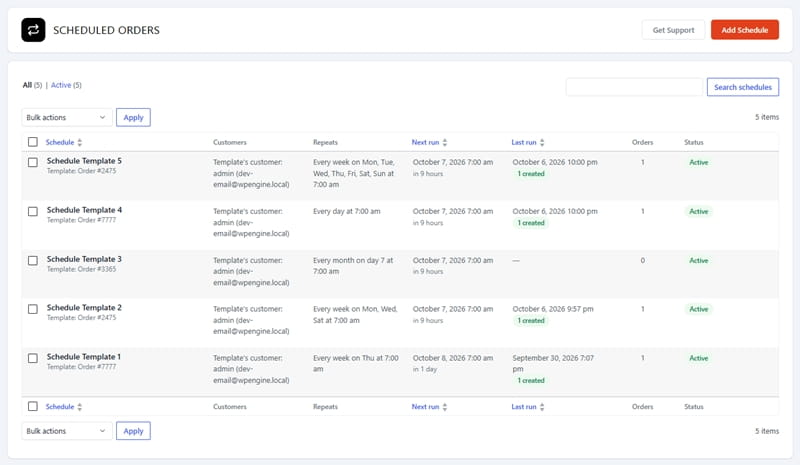
Some orders follow the calendar. With the Premium add-on, a template can place its order on its own: every few days, on chosen weekdays, or on a fixed day of the month, the last day included.
Choose one customer or a whole list, a start date, and whether the schedule ends on a date, after a number of runs, or never. Every run is logged, and a schedule can be paused, skipped, or run early. It can also email every customer their order, with a payment link when the order is Pending payment. No payment is ever taken automatically.
Order Reports
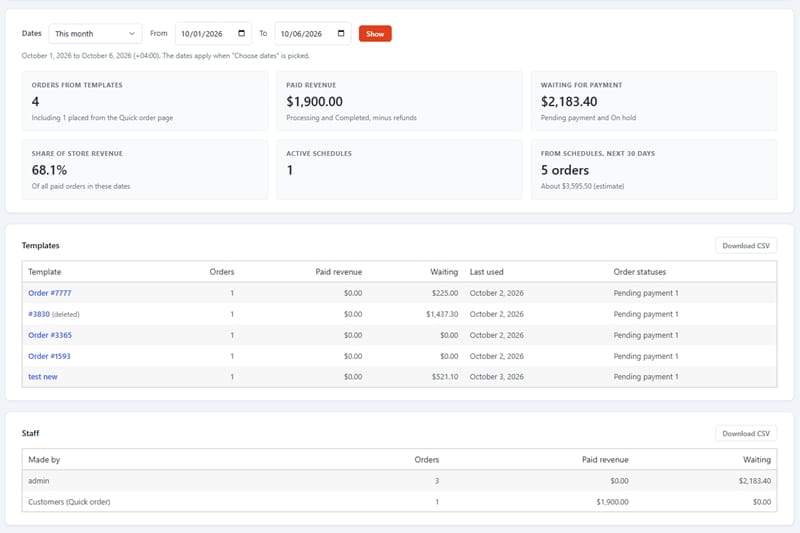
The WooCommerce Duplicate & Repeat Orders plugin has a reporting page that allows you to evaluate the real performance of your templates. The Reports screen counts the orders made from templates and shows the revenue they brought in, paid and still waiting, kept apart per currency, plus their share of all paid sales.
Tables split the figures by template, by staff member, and by customer, show how often each customer comes back, and list the scheduled orders due in the next 30 days. Pick a period or your own dates, download any table as a CSV file, and open each template's usage page.
WooCommerce Order Templates Plugin Features
Under the simple buttons works a careful order builder. It handles simple and variable products, registered customers and guests, both of WooCommerce's order storage types, and keeps its settings per site on multisite. Every line is checked for stock, price, product status and quantity rules before an order is saved, and every new order records where it came from. For growing teams, the Premium add-on adds agreed prices for key accounts, rights per staff role, template versions with restore, product replacement across all templates, CSV import and export, and a REST API for ERP and other connected systems.
The WooCommerce Duplicate & Repeat Orders: Order Templates plugin is available in free and premium versions. The Premium version provides access to all premium features and is offered in 3 licensing plans: Personal, Business, and Developer. All Premium plans include the same features. The only difference is the number of websites covered: the Personal plan supports 1 website, the Business plan supports up to 5 websites, and the Developer plan supports unlimited websites.
We accept Credit Cards, PayPal, and Debit Cards payments!
Detailed List of Features
- Modern WooCommerce: HPOS, privacy and translation-ready
- One-click Duplicate: from the order, preview or bulk
- Duplicate and edit: adjust the lines before creating
- Save as template: one order, or many in bulk
- No limits: unlimited templates and orders
- Template library: search by customer, product or SKU
- Health badges: see which templates need attention
- Template editor: products, quantities and customer
- Template notes: customer note and private staff note
- Create Order screen: stock and prices checked live
- New order from template: a button on the Orders list
- Add from template: drop products into an open order
- Price choice: duplicates at today's or original prices
- Fresh taxes: recalculated, with a VAT-exempt option
- Stock protection: block or warn before overselling
- Copy options: addresses, notes, shipping and fees
- Quiet creation: no emails, payment or stock changes
- Guest orders: guest addresses kept in templates
- Traceability: every order links to its source
- Button control: hide buttons for chosen statuses
- Scheduled orders: every few days, weeks or months Premium
- Templates in My Account: shared and customer-saved Premium
- Quick order page: SKUs, barcodes, lists and CSV files Premium
- Email reorder links: Order again, with optional coupon Premium
- Reorder reminders: opt-in emails with unsubscribe Premium
- Categories and filters: tidy large template lists Premium
- Staff rights: per-role access and private templates Premium
- Reports: orders and revenue per template/customer Premium
- CSV and REST API: import, export, connect your ERP Premium
- Pricing: saved prices, discounts and agreed prices Premium
- Stock rules: stop, warn, lower or skip short lines Premium
- Repeat-order guard: warns before ordering twice Premium
- Order options: status, shipping, payment, coupons Premium
- Bulk creation: one template for up to 500 customers Premium
- Reorder button: customers reorder from My Account Premium
- Template versions: compare and restore any change Premium
- Replace product: swap an item in every template Premium
- Combined orders: several templates in one order Premium
- Suggested products: from a customer's buying habits Premium
- Priority Support Premium
Video Manual
Repeat orders should take seconds, not a quarter of an hour of searching and typing. WDA Duplicate & Repeat Orders for WooCommerce gives your team a dependable way to reuse what customers already bought, without stale prices, oversold stock or surprise emails. Start free and feel the difference on phone and email orders from day one. As repeat business grows, the Premium add-on schedules recurring orders, serves many customers in one go, lets buyers reorder by themselves and measures the results. Your staff keep working in the WooCommerce order screens they know, plus one Repeat Orders menu.
Below you can watch a short video tutorial.
User Manual
Step 1: Installing and activating the free plugin
- In your WordPress dashboard, go to Plugins → Add Plugin (named Add New in older WordPress versions).
- Search for WDA Duplicate & Repeat Orders for WooCommerce, click Install Now, then Activate. If you have the zip file instead, click Upload Plugin at the top of the same screen, choose the file, click Install Now, then Activate Plugin.
- A new Repeat Orders menu appears in the dashboard, and every WooCommerce order now shows a Duplicate & Repeat box.
Step 1.1: Installing and activating the Premium add-on
- Check that WooCommerce and the free plugin are active.
- Download the Premium zip file using the download link in the email you received after your purchase.
- Go to Plugins → Add Plugin → Upload Plugin, choose the zip file, click Install Now, then Activate Plugin.
- Keep both plugins active. The Repeat Orders menu now also lists Schedules, Bulk Create, Reports, Categories and Replace Product. Repeat Orders → Settings gets its settings on the Premium tab, plus new Customers and Staff (administrators only) tabs.
- To update later, get the latest zip through that same email link, upload it the same way and choose Replace current with uploaded when WordPress asks.
First settings
Open Repeat Orders → Settings. Each tab is saved on its own, so click Save Changes before you move to the next one:
- New Orders:
- Status of new orders: Pending payment or On hold.
- When stock is short: stop until the lines are fixed, or warn and let you create the order anyway.
- Duplicating:
- Prices of duplicated orders: today's prices or the original order's prices.
- What a duplicate copies: billing and shipping address, customer note, shipping lines, fees.
- The order statuses for which the buttons stay hidden.
- Advanced: Delete data on uninstall, if templates and settings should be removed when the plugin is deleted. Orders are never deleted.
Duplicating an order
- Go to WooCommerce → Orders and open the order.
- In the Duplicate & Repeat box, click Duplicate. The new order opens right away, ready to check and send.
- To make changes first, click Duplicate and edit instead. A Duplicate Order #… screen opens with the order's products. Adjust the products, quantities, customer or notes, then click Create Order.
The same action is also available from:
- the Order actions list on the order screen (Duplicate order);
- the order preview (the eye icon on the Orders list);
- Bulk actions, for several orders at once: tick them on the Orders list and choose Duplicate.
Good to know: a new order is created quietly. No email goes out, no payment is taken and stock stays as it is until you take the next step yourself, such as sending the invoice or changing the status.
Saving an order as a template
- Open the order in WooCommerce → Orders.
- In the Duplicate & Repeat box, check the suggested name under Save as template, change it if you like, and click Save as template. Click Review first if you want to see the template in the editor before saving it.
- To save several orders at once, tick them on the Orders list and choose Save as templates under Bulk actions.
Creating a template from scratch
- Go to Repeat Orders → Add Template.
- Enter a Name and, if you like, a Description and a Default customer.
- Search for each product (for a variable product, pick the variation in the search results), add it and set its quantity.
- Add a Customer note that new orders will carry and a Private note that only staff see.
- Click Save Template, or Save and Create Order to use the template straight away.
Creating an order from a template
You can start in three places:
- Repeat Orders → Templates: hover over a template and click Create order.
- WooCommerce → Orders: click New order from template, next to WooCommerce's Add order button.
- Repeat Orders → Create Order: choose the template there.
On the Create Order screen, choose the customer and the order status and adjust the products if needed. The stock and price check runs as you go and shows any problem next to its product. Click Create Order when everything looks right.
To put a template's products into an order that is open in the editor (Pending payment or On hold):
- Click Add item(s), then Add from template next to WooCommerce's Add product(s) button.
- Pick the template and check the preview.
- Click Add.
Managing templates
Under Repeat Orders → Templates you can look up templates by their name, the customer, a product or a SKU, and sort the list.
A badge shows the state of each template:
- Ready;
- Needs changes: a product can no longer be ordered, for example because it was deleted;
- Low stock: not enough in stock, or sold out;
- Check lines.
Hover over a template for Edit, Create order, Duplicate and Trash. Trashed templates can be restored or deleted permanently from the Trash view.
Premium: template prices and options
- Store-wide defaults are under Repeat Orders → Settings → Premium:
- Template prices: current prices or the prices stored in the template, plus an optional discount (a percentage or a fixed amount off each product);
- Stock rules;
- Repeat-order guard;
- Scheduled and bulk orders;
- the number of versions kept per template;
- the REST API switch.
- For one template: open it and use the Premium options box. It covers prices and discount, the stock rule, the repeat-order warning, the status of new orders, shipping, payment method and coupons.
- Agreed prices: to fix the price of a product for one customer's template, type it in the product's Agreed price field in the template editor. Agreed prices always win, and the template discount does not apply to them.
Premium: scheduling orders
- Go to Repeat Orders → Schedules and click Add Schedule.
- Under Template and customers, choose the template, then either the template's own customer or These customers (a list of customers).
- Under When it runs, set:
- how often the schedule Repeats: every few days, every few weeks on chosen weekdays, or every few months on a set day or the last day of the month;
- when it Starts;
- when it Ends: never, on a date, or after a number of runs.
- Under Emails, switch on Email the customer the order to send each customer their order by email. Pending payment orders include a payment link.
- Click Save and Activate.
On the Schedules list, hover over a schedule for Edit, History, Pause, Skip next run, Run now and Delete. A paused schedule shows Activate.
Schedules rely on WooCommerce's Action Scheduler, which is triggered by visits to your site. If your store has little traffic, ask your host for a real cron job so every run starts at its time.
Premium: orders for many customers at once
- Go to Repeat Orders → Bulk Create and choose a template.
- Add the customers (up to 500) in any of these ways:
- search for them;
- pick a role under Add by role and click Add;
- paste email addresses under Add by email and click Add.
- Set the options for the batch, such as the order status and whether each customer gets the order by email.
- Click Check Customers to see a preview of every order, and untick anyone you want to leave out.
- Click Start Creating Orders. The orders are created in the background while a progress bar shows how far the job is. When it finishes, click Download CSV for the full report.
Premium: features for your customers
Open Repeat Orders → Settings → Customers, switch on what you need and click Save Changes:
- Reorder button: a Reorder button on past orders in My Account, for the order statuses you choose.
- Order templates in My Account: an "Order templates" page where customers see the templates you share with them, and can save their own orders as templates. You choose who sees a template in the template editor.
- Quick order: adds a Quick order page to My Account where buyers add products by SKU, barcode or name, paste a list or upload a CSV file, and send everything to the cart. It also works on any page through the
[wda_quick_order]shortcode. - Reorder links in emails: puts an Order again button into the customer emails you select, optionally with a discount coupon for repeat orders.
- Reorder reminders: sends a friendly reminder some days after the customer's order is marked completed, only to customers who said yes to it.
To give the Order templates or Quick order page a different web address, go to WooCommerce → Settings → Advanced and look for Account endpoints.
Premium: keeping templates up to date
- Refresh a template from an order:
- Open a newer order and click Update a template from this order in the Duplicate & Repeat box.
- Pick the template and choose Replace all products or Add this order's products.
- Click Show the Changes, then confirm. Undo reverses the update.
- Versions: in the template editor, open Versions to compare two versions or restore an earlier one.
- Replace a product everywhere:
- Go to Repeat Orders → Replace Product and choose the product to replace and its replacement.
- Click Show the Changes and leave out any template you want to keep as it is.
- Click Replace in These Templates. Undo This Replacement reverses it.
- Categories: create them under Repeat Orders → Categories or right in the template editor, then filter the template list by category.
- One order from several templates: on the Create Order screen, use More templates in this order. Or tick templates on the template list and choose Create one order from them.
- Suggested products: choose a customer in the template editor to see the Suggested products they buy again and again. Tick them and click Add to template.
Premium: reports
Repeat Orders → Reports opens on the current month. To change the period, choose another one, or pick Choose dates, enter the dates and click Show.
- The tiles at the top show the orders made from templates, the paid revenue and its share of the store's revenue.
- Below them, tables break the results down by template, staff member and customer, and list the schedule runs due within the next 30 days.
- Each table has a Download CSV button.
Premium: B2B quick orders
The Quick order page (Premium) is made for business buyers who already know what they need. They type or scan product codes, paste rows copied from Excel or load a file, see each line verified, and send the whole list to the cart at once.
Setting it up (store owner)
- Go to Repeat Orders → Settings → Customers and scroll to the Quick order section.
- Turn on Quick order page.
- If you need them, adjust the other options:
- Only some roles can use it and Roles that can use it: keep the page for chosen roles, such as your wholesale customers. When this is off, every logged-in user can use it.
- Sell hidden products by exact SKU: accept products whose catalogue visibility is Hidden when a buyer enters their exact SKU or barcode. They never appear in the name search.
- Most products in one list: 100 by default.
- Agreed prices in the form: when a product is in a template you show to the buyer (template editor → Customer portal) with Customers pay this template's prices switched on, the form and the cart use that template's price.
- Click Save Changes. Buyers now find Quick order in their My Account menu. To show the form on any other page, add the
[wda_quick_order]shortcode to it; visitors who are not logged in see a login form first.
Adding products (buyer)
- By SKU or barcode: type or scan the code in SKU, barcode or product name, set the Quantity and press Enter (or click Add). A barcode scanner works like a keyboard, so each scan adds a line and the field is ready for the next one. Entering the same code again raises the quantity of its line.
- By name: type part of a product name, choose it from the suggestions with the arrow keys and Enter, then enter the quantity.
- From a spreadsheet: open Paste a list, paste two columns (SKU and quantity, separated by a tab, comma, semicolon or space; up to 500 lines) and click Add to list. A header row such as "SKU, Qty" is understood. If the order of the columns is unclear, a button such as Read as quantity, then SKU reads the list the other way.
- From a file: open Upload a file, choose a CSV, TSV or TXT file (up to 1 MB) and click Add to list. Download a sample file shows the format. The file is read and never stored.
- From earlier orders: under Start from, pick one of the buyer's templates, a past order or Your usual products, and click Add to list.
Checking the list
Before anything reaches the cart, each line is verified: stock (including what the buyer already has in the cart), the product's quantity rules, any options it needs, and the price. A label on each line shows its state:
- Ready: the line can go to the cart.
- Needs a choice: pick the product's options, such as size or color, from the menus on the line.
- Short of stock: click the Use … button (for example Use 5) to take what is available.
- Not found: correct the code in the line's own SKU box, or click Did you mean …? when it is offered.
- Quantity not allowed or Check the quantity: change the quantity to one the product accepts.
- Not available: the product cannot be bought right now.
- Not read: a pasted line could not be understood; type the code again or remove the line.
- Not added: the cart refused the line, and the reason is shown on it.
Buyers can change any quantity, click Remove on a line, or empty the whole list with Clear list after a confirmation. Removing lines, clearing the list and adding a pasted list can be reversed with Undo. The list is saved for each buyer, so it is still there on the next visit.
Ordering
- Click Add N products to cart under the totals (N is the number of ready lines). All ready lines go to the cart at once; lines that need attention stay on the list.
- Use the View cart or Checkout link in the message and complete the order as usual.
To reuse the list later, open Save as template below the cart button, type a Template name and click Save template. The template then appears on the buyer's Order templates page. This needs the Order templates page and Customers can save their orders as templates options switched on under Repeat Orders → Settings → Customers.
For the store team
An order placed from the Quick order page says "Placed from the Quick order page." in its Duplicate & Repeat box, the Orders list shows Customer (Quick order) in the Created by column, and Repeat Orders → Reports counts these orders on the Orders from templates tile.
Good to know: finding products by WooCommerce's barcode field (GTIN, UPC, EAN, ISBN) needs WooCommerce 9.2 or newer. Barcodes saved as SKUs work on any version.
Premium: import, export, staff rights and REST API
- Export and import: use the Import and Export buttons at the top of Repeat Orders → Templates.
- The Export button exports all templates. To export only some, tick them and choose Export under Bulk actions. The CSV file can use commas or semicolons.
- An import shows a preview of every row before anything changes, and each import can be undone.
- Staff rights: under Repeat Orders → Settings → Staff (administrators only), tick for each role what its staff may do, from viewing templates to schedules, bulk orders, reports and exports.
- REST API: under Repeat Orders → Settings → Premium, switch on Allow other systems to use templates. Connected systems then use the endpoint
/wp-json/wc-wda-drop/v1/and sign in with a WooCommerce REST API key or an application password.
Tips
- A duplicate never copies the old payment details, transaction IDs or invoice numbers, and taxes are always worked out again.
- If a template shows Needs changes, open it and replace or remove the product that cannot be ordered.
- Background work (schedules, bulk jobs, product replacements, imports and reminders) can be followed under WooCommerce → Status → Scheduled Actions.
- Before deleting the plugins, turn on Delete data on uninstall under Repeat Orders → Settings → Advanced if you want their data removed. Orders always stay.