

WooCommerce Wishlist & Quick View Plugin

The WooCommerce Wishlist and Quick View plugin is a powerful and useful tool that every store needs. This is a lightweight plugin with extensive functionality. Wishlist and quick view are the two features shoppers meet on almost every big store — and the two that usually arrive as separate plugins, each with its own settings screen, its own stylesheet and its own performance cost. WDA Wishlist and Quick View for WooCommerce delivers them together as one lightweight package: customers save products for later with a single click and preview any item in a fast popup without ever leaving the page they are browsing. One plugin to install, one place to configure, one consistent design across every button, badge and window.

WooCommerce Wishlist

WooCommerce Wishlist

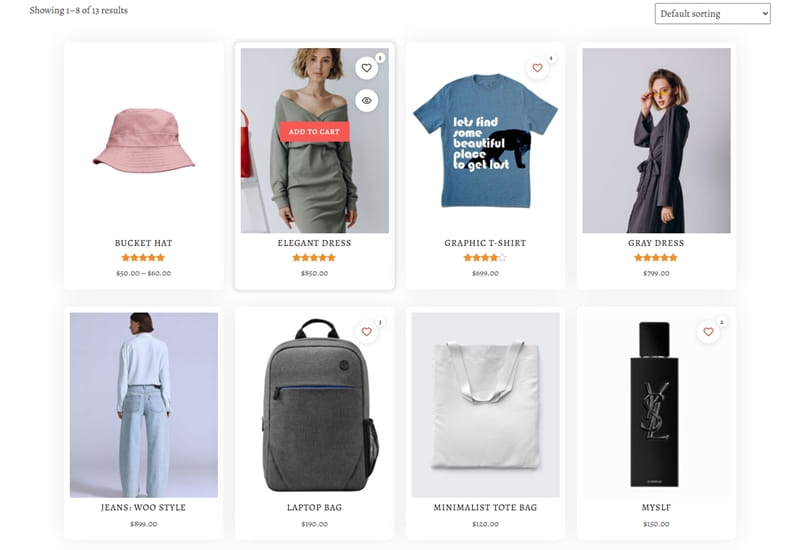
The WooCommerce wishlist works for every visitor from the first click. Shoppers without an account get a private list stored under an anonymous cookie, and the moment they sign in — or create an account during checkout — that list quietly becomes part of their profile, so nothing they saved is ever thrown away.

Buttons appear on shop listings and single product pages exactly where you choose, behave as true toggles (click again to remove), and lead to an automatically created wishlist page with prices, stock status, dates, pagination, an "Add all to cart" button, and sharing via Facebook, X (Twitter), WhatsApp, Pinterest or email, a copy-to-clipboard link, or the phone's built-in share dialog.

WooCommerce Quick View

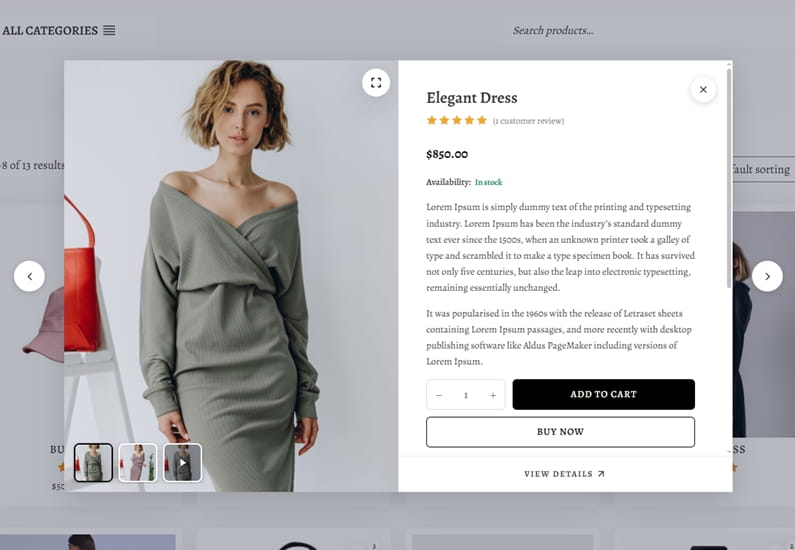
WooCommerce Quick view lets a shopper inspect a product without abandoning the grid they are browsing. The popup loads over AJAX, and hovering the button quietly fetches its content in advance, so opening it feels instant. Inside, you decide what appears: gallery, rating, price, stock status, descriptions, attributes, meta and the add-to-cart form, etc.

Simple, variable, grouped and external products all behave correctly, and choosing a variation swaps the gallery to that variation's image. Arrow and keyboard navigation jump to the previous or next product without closing the window, and anything added to the cart is reflected in the mini-cart immediately.

WooCommerce Quick View

Wishlist Analytics

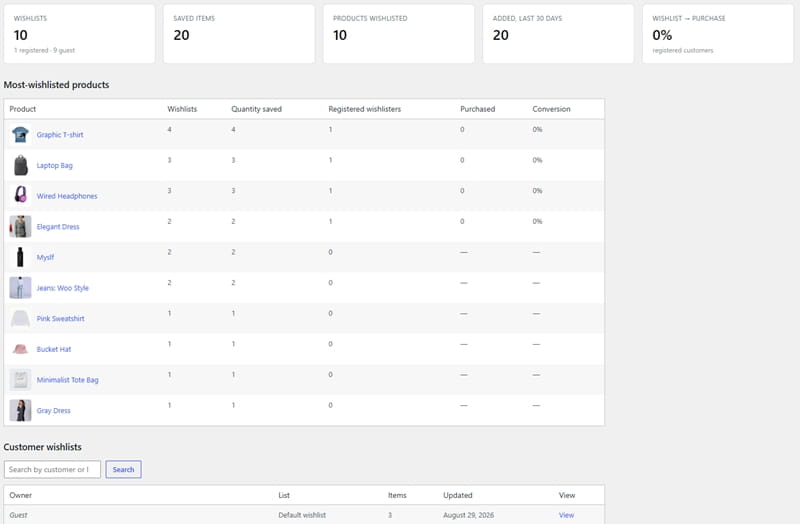
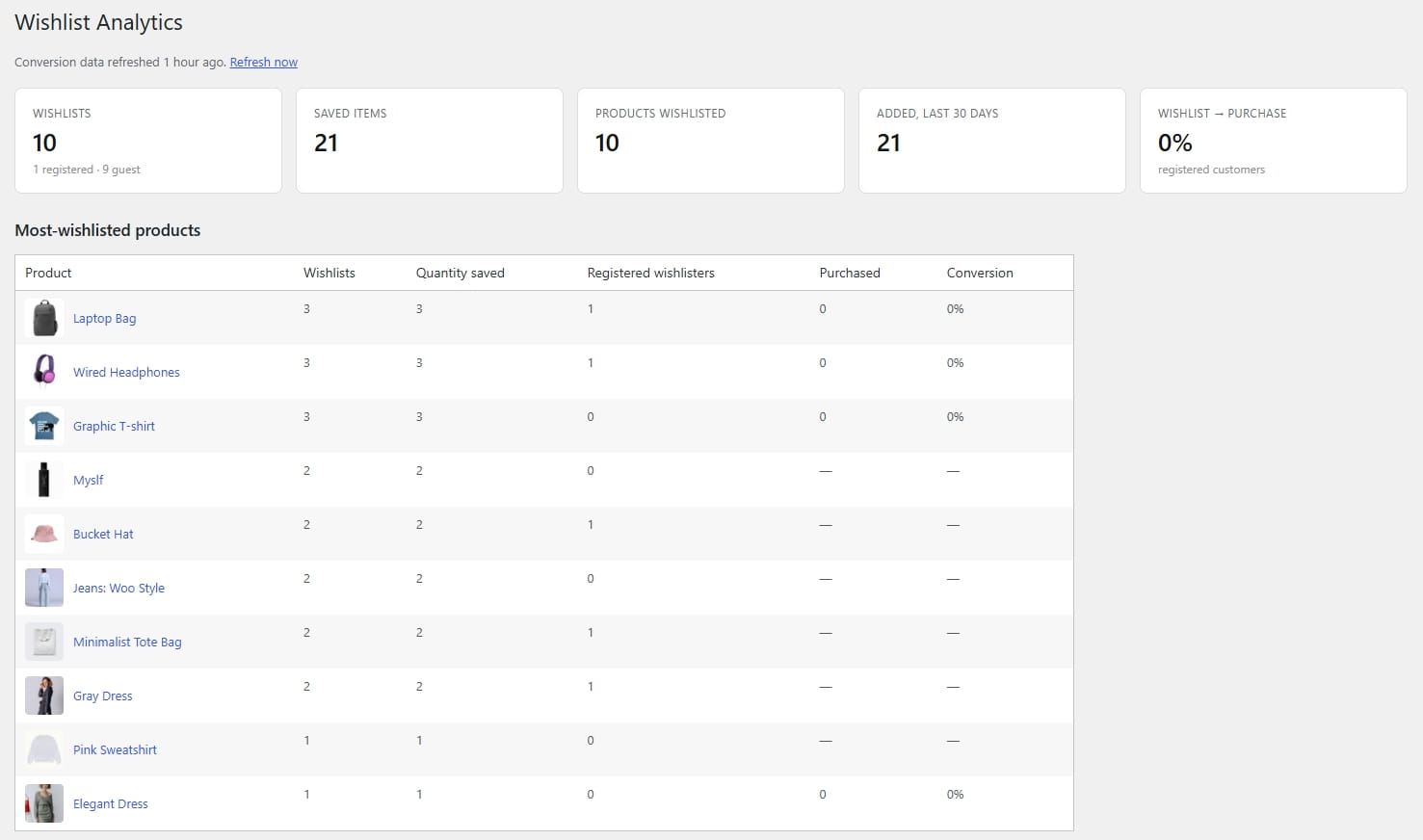
A wishlist is a list of products your customers almost bought — the analytics dashboard shows you why "almost", and what to do next. Overview tiles count every list, every saved item and everything added in the last thirty days, while the most-wishlisted table ranks products by demand and pairs each one with a conversion rate computed from real orders — so you can tell the items that get saved and bought from the ones that get saved and forgotten.

A searchable browser opens any customer's wishlist, and the same demand data powers the Campaigns screen, where a product with a hundred fans is one email away.

Quick View Gallery

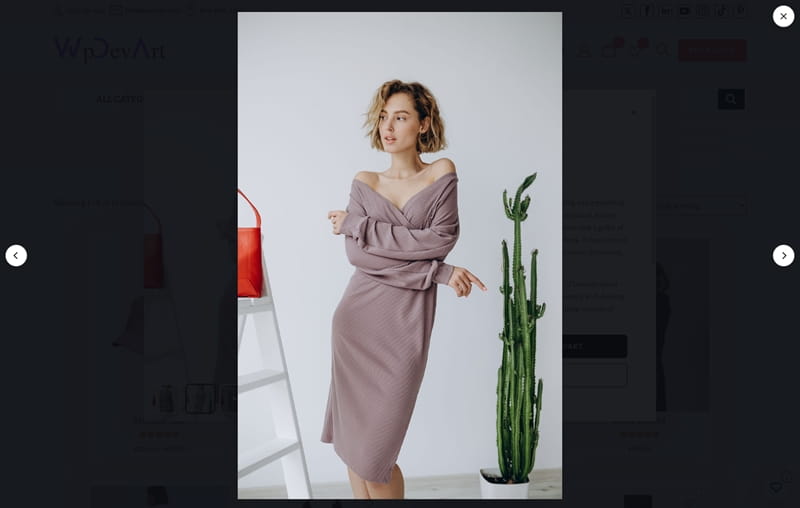
The premium gallery turns the WooCommerce quick view into a small showroom. Thumbnails glide instead of jumping, the main image magnifies under the cursor, and a lightbox opens every photo at full size — with slide, crossfade or fade-and-zoom transitions and your choice of thumbnail, dot or number navigation.

Variable products get special care: each variation can carry its own image set, swapped in the instant a shopper selects it. And when pictures are not enough, a video slide plays YouTube, Vimeo or self-hosted clips — loading nothing from the video host until the visitor presses play, which keeps the page fast and privacy-friendly.

WDA Wishlist & Quick View for WooCommerce

WDA Wishlist and Quick View for WooCommerce has a lot of great features. The free version already covers what most stores need — wishlists for guests and members, sharing, and a quick view that handles even variable products properly — while the premium add-on turns saved products into a real sales channel: multiple lists, price-drop and back-in-stock emails, analytics, promo campaigns, an enhanced gallery and more. Both are built by WpDevArt with the same priorities: fast pages, clean markup, accessibility, and full compatibility with classic themes, block themes and page caching.

The plugin is available in two editions: a Free version, installable directly from the WordPress.org plugin directory, and a Premium add-on that builds the complete conversion toolkit on top of it. The Premium edition comes with three licensing plans — Personal, Business, and Developer — so you can match the license to the number of shops you run. Every plan ships the identical plugin: the full set of premium features and functionality. The only difference between the plans is how many websites the Premium add-on may be used on: Personal covers a single website, Business covers up to five, and Developer removes the limit entirely.

FREE
FREE
Unlimited Domain License
Fully Responsive
Gutenberg Blocks
Guests & Members Wishlists
AJAX Quick View
Multiple Wishlists
Wishlist Counter
Print or Save as PDF
Mini Wishlist Panel
Privacy Levels
Promo Email Campaigns
Wishlist Analytics
Premium Quick View Gallery
Product Video
Quick View Related Products
Sortable Quick View Elements
Priority Support
$ 49
PERSONAL
1 Domain License
Fully Responsive
Gutenberg Blocks
Guests & Members Wishlists
AJAX Quick View
Multiple Wishlists
Wishlist Counter
Print or Save as PDF
Mini Wishlist Panel
Privacy Levels
Promo Email Campaigns
Wishlist Analytics
Premium Quick View Gallery
Product Video
Quick View Related Products
Sortable Quick View Elements
Priority Support
$ 99
BUSINESS
5 Domain License
Fully Responsive
Gutenberg Blocks
Guests & Members Wishlists
AJAX Quick View
Multiple Wishlists
Wishlist Counter
Print or Save as PDF
Mini Wishlist Panel
Privacy Levels
Promo Email Campaigns
Wishlist Analytics
Premium Quick View Gallery
Product Video
Quick View Related Products
Sortable Quick View Elements
Priority Support
$ 149
DEVELOPER
Unlimited Domain License
Fully Responsive
Gutenberg Blocks
Guests & Members Wishlists
AJAX Quick View
Multiple Wishlists
Wishlist Counter
Print or Save as PDF
Mini Wishlist Panel
Privacy Levels
Promo Email Campaigns
Wishlist Analytics
Premium Quick View Gallery
Product Video
Quick View Related Products
Sortable Quick View Elements
Priority Support
We accept Credit Cards, PayPal, and Debit Cards payments!

Detailed List of Features

Video Manual

Whether you run a young shop that simply needs a dependable wishlist and a fast product preview, or an established store hunting for the revenue hidden in saved-but-never-bought products, the WooCommerce Wishlist and Quick View plugin grows with you. Start free and get a polished, accessible, cache-proof foundation with no strings attached. Upgrade when you want wishlists to start selling on their own: alerts that bring customers back the moment stock returns and within a day of a price drop, campaigns aimed at people who already told you what they want, and analytics that show exactly which products deserve the next promotion. Install the free version first, add premium on top, and every feature on this page is yours to switch on from a single settings screen — no license keys, no locked settings, no separate admin menus to learn. Upgrading mid-season is safe, too: premium picks up your existing settings automatically, and nothing on your storefront changes until you switch a new module on.

Below you can watch a short video tutorial.

User Manual

Step 1: Installing and activating the free version

  • In your WordPress admin, go to Plugins > Add New Plugin and search for "WDA Wishlist and Quick View for WooCommerce".
  • Click Install Now, then Activate. WooCommerce must already be installed and active.
  • Alternative (manual upload): download the ZIP from WordPress.org (or from WpDevArt), go to Plugins > Add New Plugin > Upload Plugin, choose the file, click Install Now, then Activate.
  • On activation, the plugin automatically creates a "Wishlist" page containing the [wda_wishlist] shortcode and assigns it in the settings — you do not need to create anything by hand. A one-time notice links you straight to the settings screen.
  • You will find a new "WDA Wishlist & Quick View" menu in the admin sidebar (with a heart icon). All configuration happens there.

Step 1.1: Installing and activating the premium version

  • After purchase, download the premium ZIP file directly from the checkout page or from wpdevart.com.
  • Make sure the free plugin is installed, active, and up to date — the premium version is an add-on, not a replacement. If the free plugin is missing, premium stays safely inactive and shows an admin notice explaining exactly what to do.
  • Go to Plugins > Add New Plugin > Upload Plugin, choose the premium ZIP, click Install Now, then Activate.
  • That's it — there is no license key to enter. All premium options appear as new fields and sections inside the existing settings screen, two new admin pages (Analytics and Campaigns) appear under the same menu.

Step 2: How to configure the WooCommerce wishlist

Open WDA Wishlist & Quick View → Settings. The Wishlist tab opens by default. Every change is saved with the Save Changes button (top right or bottom bar); Reset Defaults restores only the current tab, after a confirmation, and never touches your wishlist page assignment.
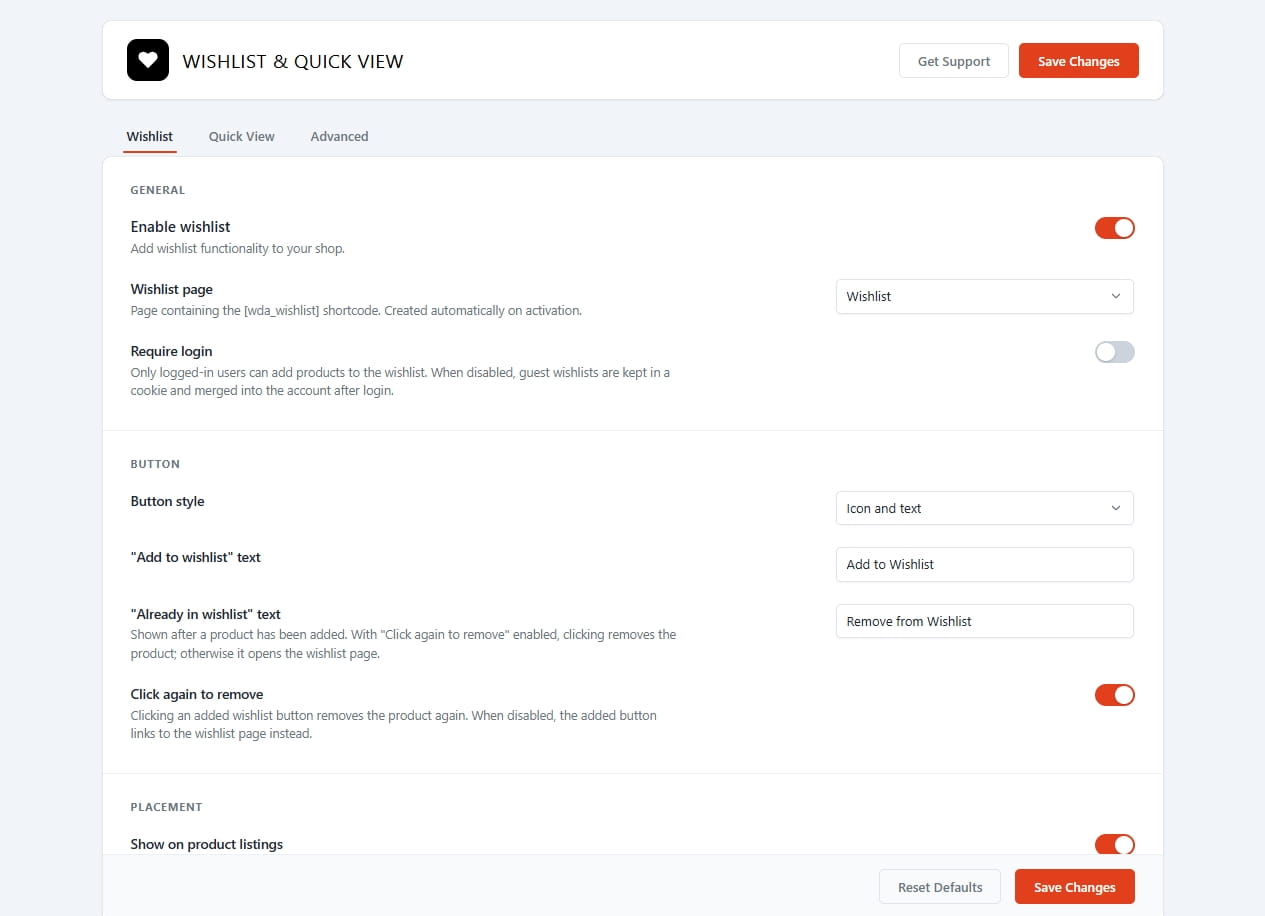
General

  • Enable wishlist — the master switch for the whole tab. While it is off, all other wishlist fields are dimmed and inactive.
  • Wishlist page — the page holding the [wda_wishlist] shortcode. It is created and assigned automatically on activation; pick a different page here if you build your own.
  • Require login — when on, only logged-in customers can add products. Leave it off to let guests build cookie-based lists that merge into their account later.

Button

  • Button style — Icon and text, Icon only, or Text only.
  • "Add to wishlist" text and "Already in wishlist" text — both labels are freely editable (emptied fields fall back to the defaults).
  • Click again to remove — makes the button a true toggle. When off, an added button links to the wishlist page instead.

Placement

  • Show on product listings + Listing button position — before/after the add-to-cart button, over the product image, or "Do not show automatically" for manual placement. The "over the image" position renders a compact icon bubble.
  • Show on single product page + Single product button position — before/after the add-to-cart form, at the end of the product summary, or "Do not show automatically".

Behavior

  • Redirect after adding — send the customer to the wishlist page immediately after adding.
  • Remove after add to cart — take an item off the list once it lands in the cart.

With premium active, this section also contains: Multiple wishlists, Show wishlist additions counter with its companion Wishlist counter style on image hover (Under wishlist icon / Top-right corner / Top left corner — used when the listing button sits over the product image), Item quantities, Wishlist total price, Wishlist in My Account, Show "Print wishlist" button, Wishlist button on the cart page (Off / Add to wishlist / Move to wishlist (removes from cart)), Wishlist privacy levels, Mini wishlist panel, and the Floating wishlist button (Off / bottom-right / bottom-left) — the floating button becomes selectable only while the mini panel is enabled, since the bubble's job is to open it.

Sharing

  • Enable sharing + Share networks — choose any combination of Facebook, X (Twitter), WhatsApp, Pinterest, Email and Copy link for the wishlist page.

Style

  • Accent color — one color drives the heart, the counter badge and all highlights.
  • Wishlist icon — Heart, Star or Bookmark.

Email alerts (premium only)

  • Back in stock alerts and Price drop alerts — automatic emails to registered customers about their saved products (price checks run once a day).
  • Wishlist reminders + Remind after (days) — a gentle nudge when a list has items but sat untouched; at most one reminder per customer every 30 days.
  • Guest email capture — after a guest saves a product, offer to email them stock and price alerts as well.

Step 3: How to configure the quick view

Switch to the Quick View tab on the same settings screen.
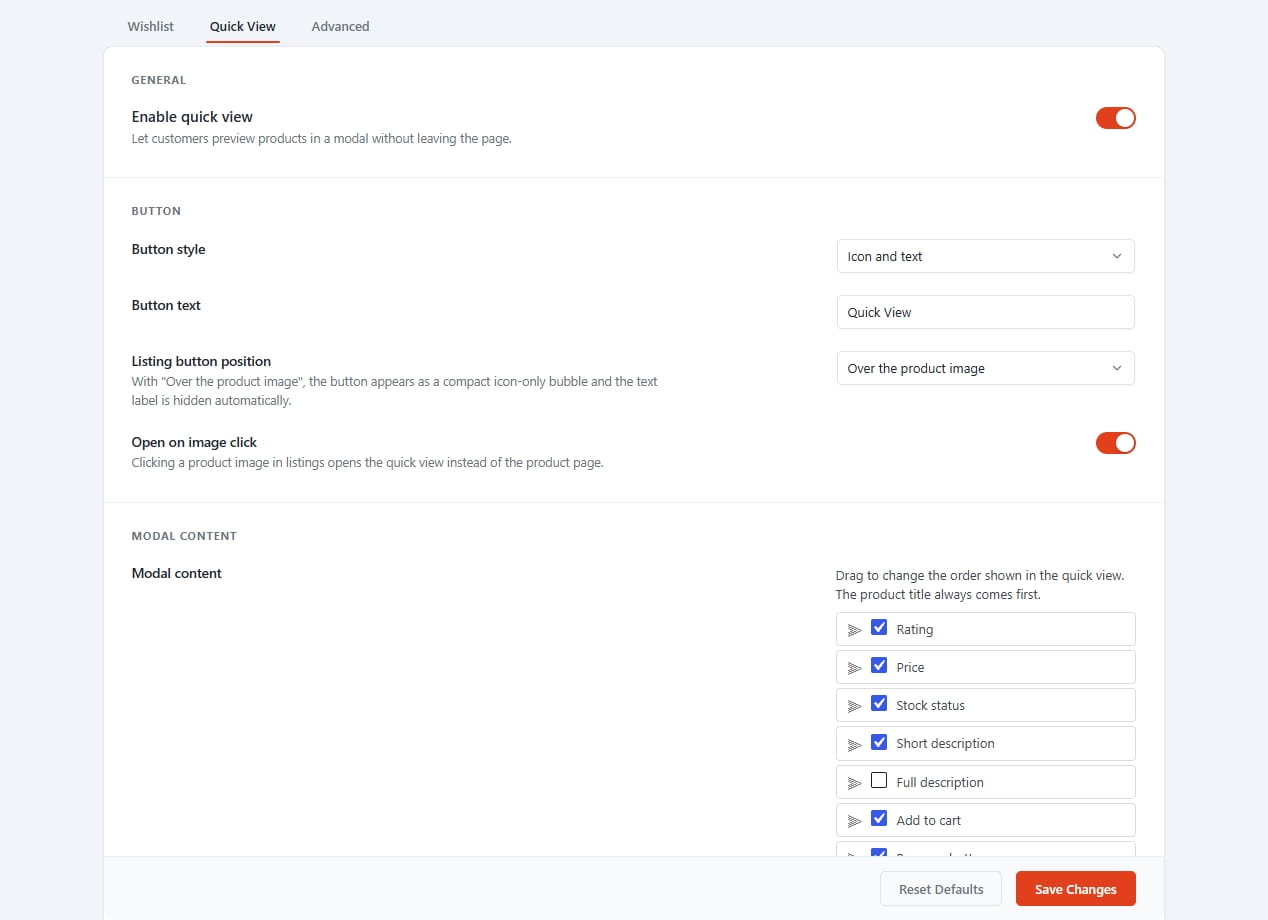
General

  • Enable quick view — the master switch; all other quick view fields are dimmed while it is off.

Button

  • Button style — Icon and text, Icon only, or Text only.
  • Button text — the label, freely editable.
  • Listing button position — before/after add to cart, over the product image (compact bubble), or manual-only.
  • Open on image click — clicking a product image in listings opens the quick view instead of the product page.

Modal content

  • Modal content — tick which elements appear in the popup: Rating, Price, Stock status, Short description, Full description, Add to cart, Attributes, Product meta, Wishlist button and the link to the full product page. With premium active this checklist becomes drag-sortable — the popup renders the elements in the order you arrange, with two sensible fixed points (the product title always stays on top and the product-page link keeps its spot in the bottom bar) — and it gains three new entries: Share buttons, Related products and Buy now button.
  • "View Details" text — the label of the link to the full product page.
  • After add to cart (premium) — keep the popup open, close it, or send the customer to the cart or checkout page.

Style

  • Quick view width — maximum popup width in pixels (480–1600).
  • Overlay opacity — darkness of the background behind the popup.
  • Corner radius — rounding applied to the popup and other plugin surfaces.
  • (Premium) Quick view icon — Default, Fullscreen or Plus circle — plus six style choices each for the Add to cart and Buy now buttons: the plain theme default and five animated black/outline variants.

Gallery (premium only)

  • Premium gallery — the master switch for the enhanced gallery.
  • Hover zoom — magnify the main image on hover (desktop).
  • Lightbox + Lightbox view size — open images full-size in an overlay: full width, medium or small.
  • Image switching animation — Slide, Crossfade, or Fade & zoom.
  • Switching/Navigation type — thumbnails, dots or numbers.
  • Variation galleries — show each variation's own image set when it is selected.
  • Product video — show a click-to-load video slide when a video is set on the product.

Sharing (premium only)

  • Share networks — which networks the popup's share row offers (same six choices as the wishlist).

Related products (premium only)

  • Related products text — the heading above the carousel.
  • Products to display — 1 to 12 products.
  • Products source — automatic related products, or the Upsells / Cross-sells you picked on each product's Linked Products tab.

Modal content

On the product edit screen you get a "Quick View & Wishlist" tab in the product data box: a Video URL field (YouTube, Vimeo or direct .mp4 — nothing loads from the video host until the visitor clicks play), an optional Video poster image, and an "Exclude from alert emails" checkbox. On variable products, every variation row additionally gets its own Quick view gallery image picker with drag-to-reorder.

Step 4: Analytics and campaigns (premium)

Two extra admin pages appear under the same menu. Analytics is a read-only dashboard: overview tiles (wishlists, saved items, products wishlisted, additions in the last 30 days and a wishlist-to-purchase conversion rate computed from real orders), a most-wishlisted products table with per-product conversion, and a searchable browser of every customer wishlist. Campaigns lets you pick a wishlisted product, compose an email in the familiar WordPress editor and send it to the registered customers and captured guest emails holding that product — deduplicated, and capped at 500 recipients per send (the cap is adjustable) — with a "Send test to me" button, an automatic product card and unsubscribe footer, and a history of your recent campaigns. Every alert and campaign email is rendered through your store's own WooCommerce email template, so the design always matches your other shop emails.
Step 5: Shortcodes and blocks

Place any element by hand wherever you want it. The Advanced tab of the settings screen lists the four free shortcodes with one-click copy buttons:

  • [wda_wishlist] — the wishlist table (already placed on the auto-created page)
  • [wda_add_to_wishlist product_id=""] — outputs a wishlist button for the given product wherever you drop it
  • [wda_quick_view_button product_id=""] — does the same for the quick view button
  • [wda_wishlist_count] — a live counter badge for headers, menus and widgets

The premium version adds one more: [wda_wishlist_search] — put it on any page to build a gift-registry-style search of public wishlists (it is mentioned right in the "Wishlist privacy levels" setting).

Matching Gutenberg blocks exist for the wishlist button, quick view button and counter, and they work inside Product Collection templates on block themes. The Advanced tab also holds the Delete data on uninstall switch if you ever want a complete cleanup.