
Make pricing flexible with our WooCommerce Request a Quote plugin. Hide prices, collect quote requests, offer custom deals, and manage negotiations. Not every sale starts with a price tag. Wholesale buyers expect volume pricing, contractors need figures for a project, and custom jobs have to be estimated before anyone can pay. Our WooCommerce Request a Quote plugin gives these customers a proper way to ask, and gives you a tidy, trackable process to answer. Shoppers collect the items they want and submit one short request. You receive it in your dashboard as a genuine WooCommerce order, set your prices in the editor you already use, and send the offer with a single click. The customer opens a secure link, approves it, turns it down, or asks for adjustments, then pays the agreed amount with your usual payment methods. No spreadsheets, no copy-pasting, no lost email threads. Prices can stay hidden until you are ready to share them, and quotes never distort your sales reports. The free version covers the full journey from first request to final payment, while the Premium add-on brings branded PDF quotes, smart rules, analytics, deposits, and team tools.

Request a Quote for WooCommerce
Give shoppers a simple alternative to Add to cart. The quote button can appear on product pages, shop and category grids, block layouts and Elementor designs, next to the cart button or in its place. Buyers build a quote list, leave a note on any line and submit it with or without an account.
On your side, each request opens in the familiar WooCommerce order screen, where you adjust prices, quantities, shipping, fees and taxes before sending your offer. As soon as the customer approves, the quote turns into an order that is ready to be paid.
Request a Quote Analytics
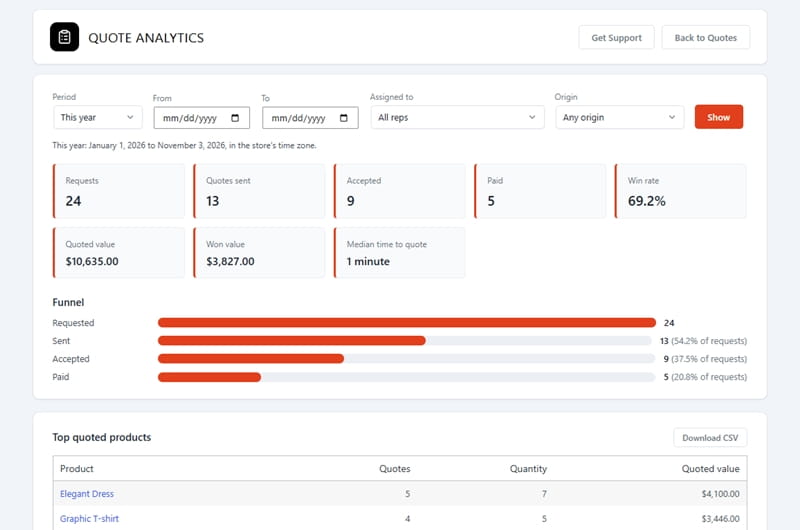
Quotes are kept out of WooCommerce's sales reports on purpose, so the Premium add-on gives them a dashboard of their own. The Analytics screen follows every request through the funnel from received to sent, accepted and paid, and shows your win rate, the value you quoted next to the value you won, and how quickly your team replies.
See which products people ask about most, why some offers are declined and how each sales rep is doing. Pick a preset period or your own dates, filter by rep or by where a quote came from, and download any table as a CSV file.


Request a Quote Demo
Quote Rules
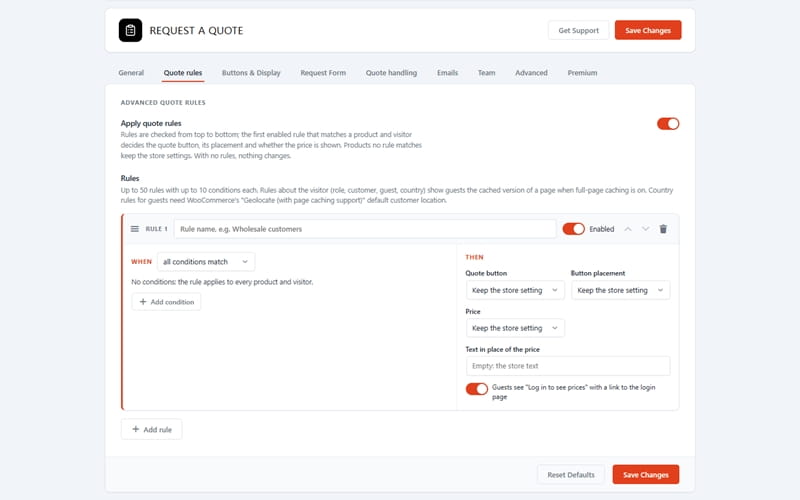
Decide which products need a quote and who gets to see a price. The free version opens quoting for the whole catalog, chosen categories or single products and variations. It can keep requests for logged-in customers, offer quotes only while items are sold out and swap prices for a message like "Call us for pricing".
Premium adds a rules engine: target user roles, specific customers, guests, tags, brands, stock status, unpriced items, price ranges or countries, arrange rules by priority and give each one its own button behavior, price text or login prompt.
Request a Quote Form
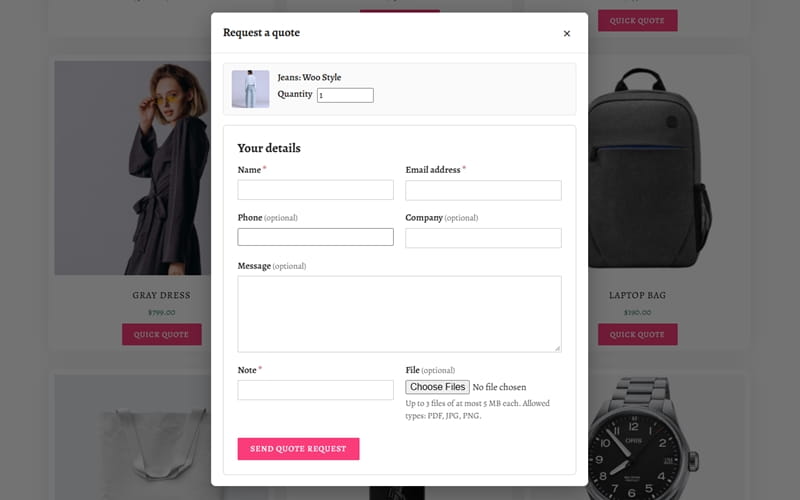
The request form asks only for what you need. Name, phone, company, address and message can each be required, optional or hidden, email is always collected, and every label can be renamed. Logged-in customers see their details filled in, a privacy checkbox can link to your terms, and a honeypot, a minimum fill-in time and hourly limits block spam with no outside service.
Premium lets you add your own text, number, date, choice and file fields to the request or to each product line, accept secure uploads and switch on hCaptcha, Google reCAPTCHA or Cloudflare Turnstile.
WooCommerce Request a Quote Plugin Features
Every step of quoting happens inside WooCommerce, so you keep the tools you already trust: the orders list, order notes, taxes, shipping, coupons, emails and payment gateways. The free plugin handles the buttons, the quote list, price hiding, the request form, a quote inbox, pricing, online approval, payment, a customer quotes area and a printable quote. The Premium add-on builds on that base for stores that quote every day, with generated PDF files, expiry dates and reminders, revisions and negotiation, deposits, a sales team workflow, reporting, automation and fast ordering tools for trade buyers.
The WooCommerce Request a Quote plugin comes in Free and Premium versions. The Premium version includes three license plans: Personal (one website), Business (up to five websites), and Developer (unlimited websites). All Premium plans provide the same features and differ only in the number of supported websites.
We accept Credit Cards, PayPal, and Debit Cards payments!
Detailed List of Features
- Quote buttons: fit classic and block themes
- Placement: product, shop and category pages
- Page builders: block, shortcode and Elementor
- Quote list: quantities and a note on each line
- Guest-friendly: no account needed to ask
- Flexible scope: products, variations, categories
- Hidden prices: store-wide, category or product
- Price safety: no amounts before you reply
- Request form: required, optional or hidden
- Spam guard: honeypot, timer and rate limits
- Native storage: each request is an order
- Quote inbox: status views and new counters
- Familiar editor: price lines like any order
- Manual quotes: phone and email enquiries
- Online answers: accept, decline, request edits
- Quote to order: approved quotes become payable
- My Account: a Quotes tab for your customers
- Print view: save any quote as a PDF file
- Email set: five native WooCommerce emails
- Easy switch: import quotes from other plugins
- PDF quotes: your logo, terms and Accept link Premium
- Validity: expiry dates and smart reminders Premium
- Advanced rules: roles, customers, countries Premium
- Analytics: funnel, win rate and CSV export Premium
- Custom fields: text, choices, dates, files Premium
- CAPTCHA: Turnstile, reCAPTCHA v3, hCaptcha Premium
- Deposits: part now, the balance later Premium
- Quote templates: start new quotes faster Premium
- Cart to quote: one button for the whole cart Premium
- Checkout quotes: a Request a quote method Premium
- Setup wizard: guided start and a test quote Premium
- Revisions: every version kept and restorable Premium
- Negotiation: counter-offers and target prices Premium
- Payment controls: deadlines, PO, gateways Premium
- Sales team: assign, route and notify reps Premium
- Automation: auto-send and auto-approve Premium
- Quick Quote Pad: SKUs, pasted lists, CSV Premium
- Reorder via Duplicate & Repeat Orders Premium
- Quote drawer: count icon and mini list Premium
- Priority Support Premium
Video Manual
When your products need a conversation before a sale, quoting should not slow you down or scatter details across inboxes and spreadsheets. With this WooCommerce Request a Quote plugin, every request, price change, customer answer and payment stays linked to a single order, so your team always knows what was offered and what was agreed. Start with the free version and run complete quotes from day one, then add Premium when you want branded PDFs, automation, analytics, deposits and team features on top. The two work side by side, and nothing in the free version will ever move behind a paywall.
User Manual
Step 1: Installing and activating the free plugin
- Make sure WooCommerce is installed and active.
- In your WordPress dashboard, open Plugins → Add Plugin (on older WordPress versions this screen is called Add New).
- Search for WpDevArt: Request a Quote & Quote-to-Order for WooCommerce, click Install Now and then Activate. If you have the zip file, click Upload Plugin at the top of the same screen, choose the file, click Install Now and then Activate Plugin.
- After activation you will see a new WpDevArt Quotes menu, a Quotes entry under WooCommerce, and a ready-made quote list page (titled Request a Quote) that the plugin sets up for you.
Step 1.1: Installing and activating the Premium add-on
- Keep WooCommerce and the free plugin installed and active. Premium is an add-on: it extends the free plugin and does not replace it.
- Download the Premium zip file with the link in the email you received after your purchase.
- Go to Plugins → Add Plugin → Upload Plugin, choose the zip file, click Install Now and then Activate Plugin.
- The WpDevArt Quotes menu now also lists Analytics, Export and Templates. The settings page gets three new tabs, Quote rules, Quote handling and Team, plus extra sections on the existing tabs, and the Premium tab holds the setup wizard and the settings import and export.
- To update later, download the latest zip from the same email link, upload it the same way and choose Replace current with uploaded when WordPress asks.
First settings
Open WpDevArt Quotes → Settings. The General tab starts with a short getting-started checklist. Click Save Changes on each tab before you move to the next one.
- General:
- What can be quoted: choose the Products that can be quoted (the whole catalog, chosen categories or individual products), pick the Categories to include or leave out, decide in Quote button and Add to cart whether the quote button sits next to the cart button or takes its place, and tick Only when out of stock if quotes are only for items you cannot ship right away.
- Who can request: open quotes to any visitor or only to customers who are signed in, and choose What guests see.
- Price hiding: set Hide prices, the Categories with hidden prices and the Text instead of the price, for example "Price on request".
- Quote page and Customer responses: choose the quote page, whether the list shows prices, the empty list text, whether Customers can decline or Customers can ask for changes, and the Quotes tab in My Account.
- Buttons & Display: choose the Button style (a regular button or a plain link), edit the Button label and the Label once added, set the Product page position, show the button in product lists and quick view, turn on Custom button colors and edit the message shown after a product is added.
- Request Form: make the name, phone, company, address and message fields required, optional or hidden and rename their labels, add a Privacy checkbox with its text, edit the Form heading, Introduction, Send button label and Confirmation message, and adjust the Spam protection limits.
- Emails: you edit the quote emails under WooCommerce → Settings → Emails, where you change what each one says and who receives it, just as with WooCommerce's own emails.
- Advanced: set how long Quote links stay valid for, switch off every old link at once with Invalidate all quote links, bring in quotes created by a different quote plugin and decide whether to Delete data on uninstall.
Individual products have their own Quote tab in the product editor, so you can switch quoting on or off for a single product or variation.
How customers request a quote
- The shopper clicks Add to quote on a product page or in a product grid.
- On the quote list page they adjust quantities, delete lines they no longer need or write a note on any line.
- They fill in the short form and send it. The request is saved right away, you get the New quote request email and the customer gets Request received.
Pricing and sending a quote
- Go to WpDevArt Quotes → Quotes (or WooCommerce → Quotes). New requests have the New request status, and a counter shows how many are waiting.
- Open a request. It behaves like any WooCommerce order: edit unit prices and quantities, add or remove products, and add shipping, fees, coupons or taxes.
- In the Quote box, write a message for the customer and click Send quote. If a line still has no price, the plugin warns you before anything is sent.
Creating a quote yourself
- For phone or email enquiries, click New quote on the Quotes screen. WooCommerce's order screen opens as a Draft quote: choose a customer or type a guest email, add products and prices, then click Send quote.
- A pending or draft order can become a quote with Send as quote.
- To reuse an earlier quote, choose Duplicate as new draft quote.
What your customer sees
- The Your quote is ready email contains a secure link. No login is needed to open the quote.
- On the quote page the customer can accept, decline (optionally saying why) or ask for changes. A change request comes back to you with their message, and you edit the quote and send it again.
- After acceptance the quote becomes an order awaiting payment. Payment happens on the usual WooCommerce Pay for order screen, so every gateway you have enabled works, bank transfer and cash on delivery included.
- Customers with an account find everything under My Account → Quotes, where they can view, accept, pay, print or request the same products again.
Importing quotes from another plugin
- Open WpDevArt Quotes → Settings → Advanced.
- Start the import tool. It first counts the quotes it found for each status.
- Select the ones to move and run the import. It works in the background and skips orders that were already imported.
Premium: advanced quote rules
- Open WpDevArt Quotes → Settings → Quote rules and click Add rule.
- Choose who and what the rule applies to: user roles, specific customers, guests, product tags or brands, stock status, products without a price, a price range or customer countries.
- Choose what the rule does: put the quote button in place of Add to cart or right next to it, hide the price behind your own text, or ask visitors to log in to see prices.
- Drag the rules, or use the arrow buttons, to set their priority. Each rule has its own on/off switch.
Premium: PDF quotes, validity, reminders and numbers
Open WpDevArt Quotes → Settings → Quote handling:
- PDF quotes: add your logo, colors, company and tax details, terms and a signature line. The PDF travels with the quote email as an attachment, and customers can also download it from their account.
- Quote validity: set how many days a quote stays valid. The date can be changed on each quote, and expired quotes close automatically.
- Reminders and follow-ups: remind customers about quotes that are about to expire, still unanswered or accepted but not paid, and get a nudge about requests that still have no price.
- Quote numbers: give quotes their own numbering with a prefix, suffix and fixed length, for example Q-2026-0001.
Premium: request form extras
Open WpDevArt Quotes → Settings → Request Form:
- Custom fields: add text, paragraph, number, date, dropdown, radio, checkbox and file fields that apply to the entire request or to each product line, and map them to billing or company details.
- File uploads: choose the allowed file types, the maximum size and the number of files. Files are stored privately and opened through signed links.
- Spam check (CAPTCHA): pick hCaptcha, Google reCAPTCHA (v3) or Cloudflare Turnstile and enter your keys.
Premium: storefront tools
Open WpDevArt Quotes → Settings → Buttons & Display:
- Cart to quote: adds a quote button to the cart and the mini cart. You choose where it shows, its label, whether the cart is emptied afterwards, and whether a quote is required above a certain cart total.
- Quick quote popup: lets shoppers request a single product from a dialog without visiting the quote page.
- Quote count icon: an icon for your header that counts the items in the quote list as they are added. The Mini quote list option opens the newest items in a dropdown or a side panel.
- Quick Quote Pad: explained in the next section.
Premium: Quick Quote Pad for trade buyers
- In Buttons & Display, section Quick Quote Pad, tick Quick Quote Pad, choose Who can use the pad, keep In My account ticked and click Save Changes.
- Customers open My Account → Quick quote, or a page with the Quick Quote Pad block or shortcode, and add products by SKU, barcode or name, by pasting lines such as "ABC-123, 10", or by uploading a CSV, TSV or TXT file.
- Lines that need attention are marked, for example a variation still to choose or an unknown code. Ready lines move to the quote list with Add N products to quote list.
Premium: request a quote at checkout
- Go to WooCommerce → Settings → Payments and enable Request a quote.
- Shoppers pick it at checkout like a payment method. The order is saved as a quote request with every checkout detail, ready for you to price.
Premium: revisions, negotiation and payment rules
These sections are also on the Quote handling tab:
- Quote revisions: every time you send a quote, a version is stored. Compare versions and restore an earlier one, while the customer sees what changed in the revised quote.
- Negotiation: customers can suggest a target price per line and send counter-offers. Limit the number of rounds and mark an offer as final.
- Payment and acceptance: choose which payment methods can pay for quotes, set a payment deadline with a reminder, let approved customers accept with a PO number and pay later, or ask for a typed name as a signature.
- Automation: send quotes at catalog prices after a set time, approve small requests automatically and create accounts for guest customers.
- Margin guard: show the cost and margin of each line in the quote editor, with a warning below your minimum margin, based on WooCommerce's cost of goods.
Premium: deposits
- Open Settings → Quote handling → Deposits, set Deposit to a percentage of the quote total or a fixed amount, and enter the Deposit amount.
- Choose when to Request the balance, the Days to pay the balance and the Balance reminder (days before it is due), then click Save Changes.
- To use a different deposit on one quote, open the Deposit panel in that quote's Quote box.
- When the customer accepts, they pay the deposit first. A balance order with a separate payment link follows, and the Quote balance due, Quote balance reminder and Quote balance overdue (store) emails keep both sides informed.
Premium: sales team
Open WpDevArt Quotes → Settings → Team:
- Staff rights: decide what each staff role may do with quotes, such as viewing, editing, assigning, exporting or opening analytics. The Quote manager role card creates a ready-made role for your quote staff.
- Assignment and routing: assign new quotes by hand, rotate them between selected reps or route them by product category, and let reps see only their own quotes if you prefer.
- Rep notifications: email reps when a quote is assigned to them and use them as the reply-to address.
- Slack and webhook alerts: post quote events to Slack or to any webhook address.
Premium: analytics, export and templates
- WpDevArt Quotes → Analytics: the request funnel, win rate, quoted and won value, response time, top products, decline reasons and results per rep, with date presets, filters and CSV downloads.
- WpDevArt Quotes → Export: download quotes as a CSV file filtered by dates, value, customer and origin, with or without customer details. On the Quotes list, the bulk actions Resend quotes and Expire quotes handle many quotes at once.
- Templates: click Save as template in a quote's Quote box, then start new quotes from the WpDevArt Quotes → Templates library.
Premium: reorder with Duplicate & Repeat Orders
- Install and activate Duplicate & Repeat Orders for WooCommerce and its Premium add-on.
- In Settings → Quote handling → Reorder with Duplicate & Repeat Orders, choose when reorder templates are made.
- An accepted quote is then turned into a reorder template that keeps the negotiated prices, and the customer can order the same products again from My Account → Order templates.
Premium: setup wizard, settings transfer and webhooks
- Settings → Premium → Setup wizard: answer three short questions about your store, then send a test quote to yourself to walk through the whole journey from request to payment.
- Settings import and export on the same tab: Download Settings File saves your settings as a JSON file. An import shows a preview before anything changes and can be undone.
- WooCommerce → Settings → Advanced → Webhooks: topics for new, sent, accepted and declined quotes connect your store to Zapier, CRMs and other tools.
Tips
- Quotes are WooCommerce orders, but they stay out of the main orders list, WooCommerce Analytics and My Account → Orders until they are accepted, and they are never cancelled automatically.
- If a caching plugin ignores the plugin's no-cache signals, leave the quote list page out of its cache.
- Products with hidden prices also have no price in their structured data, so search engines will not show a price for them.
- To change the look of a page or email, copy its template from the plugin into your theme and edit the copy.
- Before deleting the plugin, enable Delete data on uninstall (Settings → Advanced) if you want its settings and quote data gone as well. Orders themselves are never deleted.